Integrating with Kula: Setup and guide

The Hireflix integration with Kula allows you to send asynchronous (one-way) video interviews directly from Kula. You can invite candidates in bulk or individually, track completion, and review recordings and scorecards inside Kula.
Enabling the Kula and Hireflix integration
To enable the integration, you will need to turn it on in Kula and add two values generated in Hireflix: an API key and a webhook secret key.
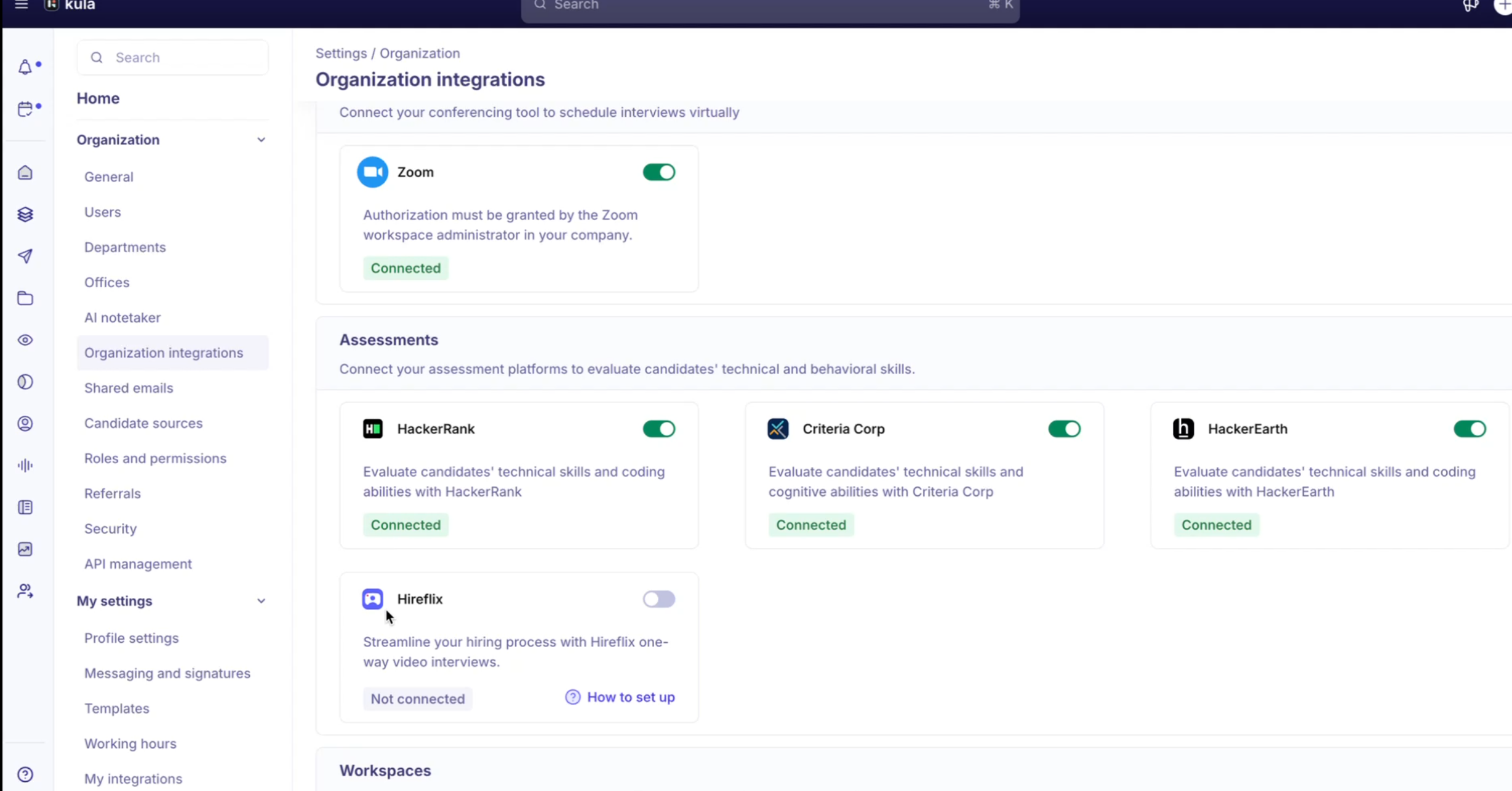
- Log in to your Kula account and navigate to Settings > Org Integrations. Under the Assessment category, find Hireflix and turn the integration on.
- In a new tab, log in to your Hireflix account, click your profile name, and go to API Keys. Create a new API key (for example, name it “Kula”), then copy the generated key.
- Go back to Kula and paste the copied value into the API Key field.
- Back in Hireflix, go to Webhooks and copy the Secret Key.
- Return to Kula, paste the copied value into the Secret Key field, and click Verify.
Once verified, both systems are connected. 😊
You will also notice that the webhook is already configured within your Hireflix account. This is done automatically during the setup.
Managing jobs and sending Hireflix interviews
Once the Kula/Hireflix integration is enabled, you will be able to send Hireflix assessments from inside Kula. It is recommended to create a stage called Assessment in your job pipeline so it is easy to track where candidates receive the Hireflix interview.
Option 1: Sending Hireflix interviews in bulk
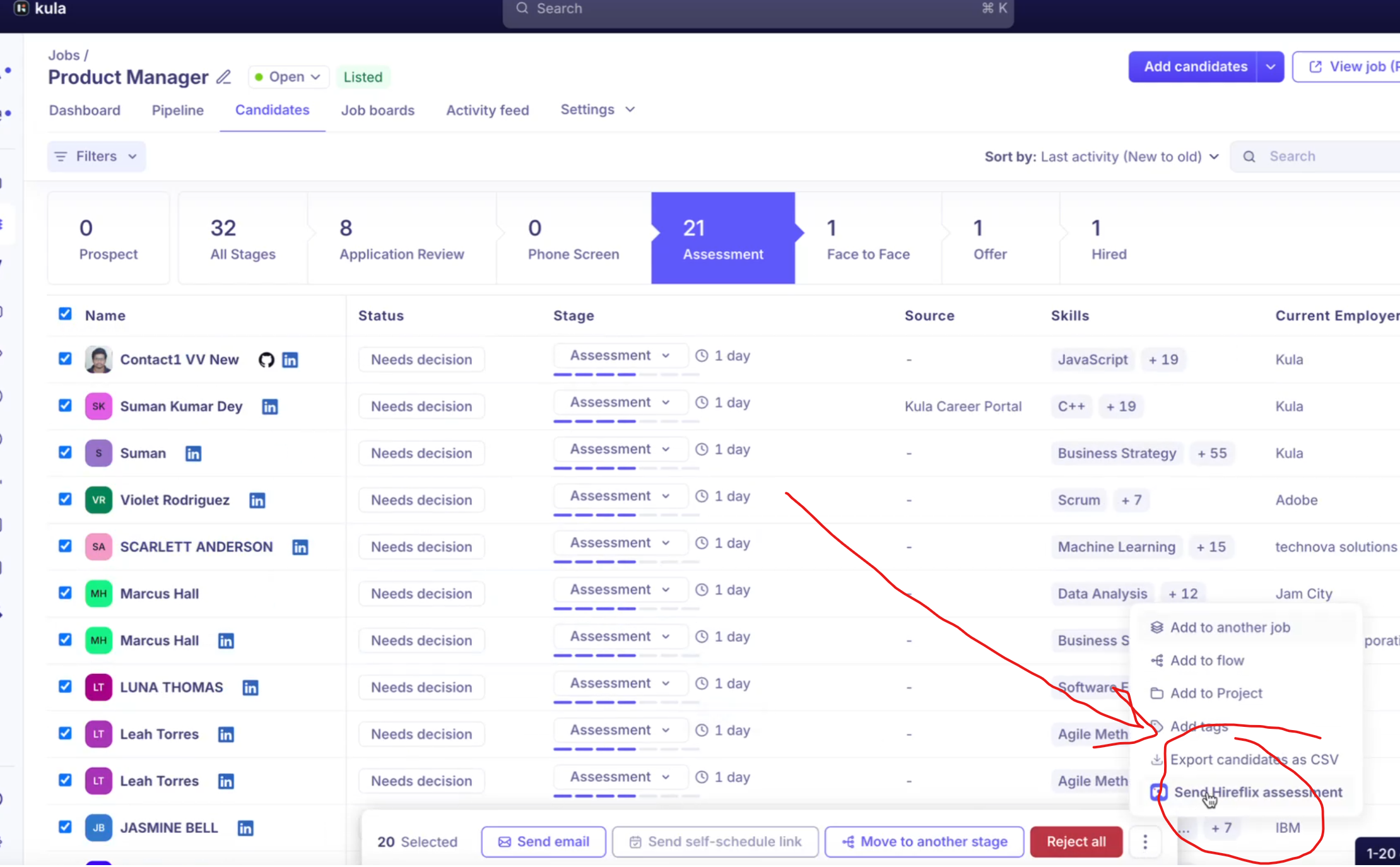
- Open the required job in Kula.
- Select the candidates you want to invite (you can select multiple candidates on the page).
- Click More and choose Send Hireflix Assessment.
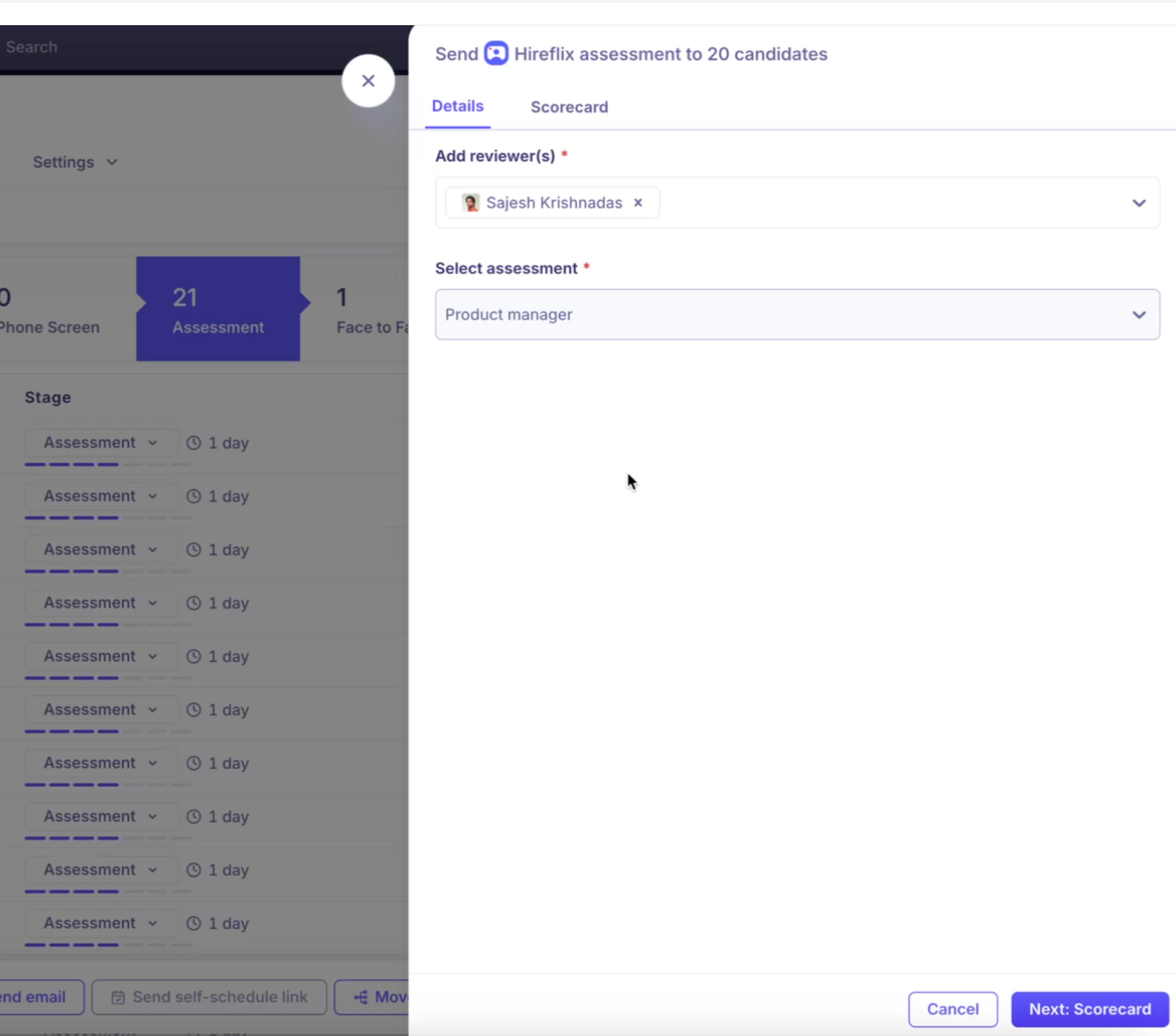
- Select the Reviewer (who should be notified once the interview is completed).
- Select the correct Assessment and choose the relevant Scorecard.
- (Optional) Add any custom questions.
- Click Send to invite all selected candidates.
Option 2: Sending a Hireflix interview to a single candidate
- Open the candidate’s application in Kula.
- Click Send Hireflix.
- Select the Reviewer, Assessment, and Scorecard.
- Click Send.
Once sent, the candidate will receive an email from Hireflix with a link to record their interview.
Candidate experience
The candidate clicks the link from the Hireflix email, which opens the interview in Hireflix. They click Start Interview, grant the required permissions, and record their answers. Once completed, the interview is submitted automatically.
Reviewing the responses and scorecards
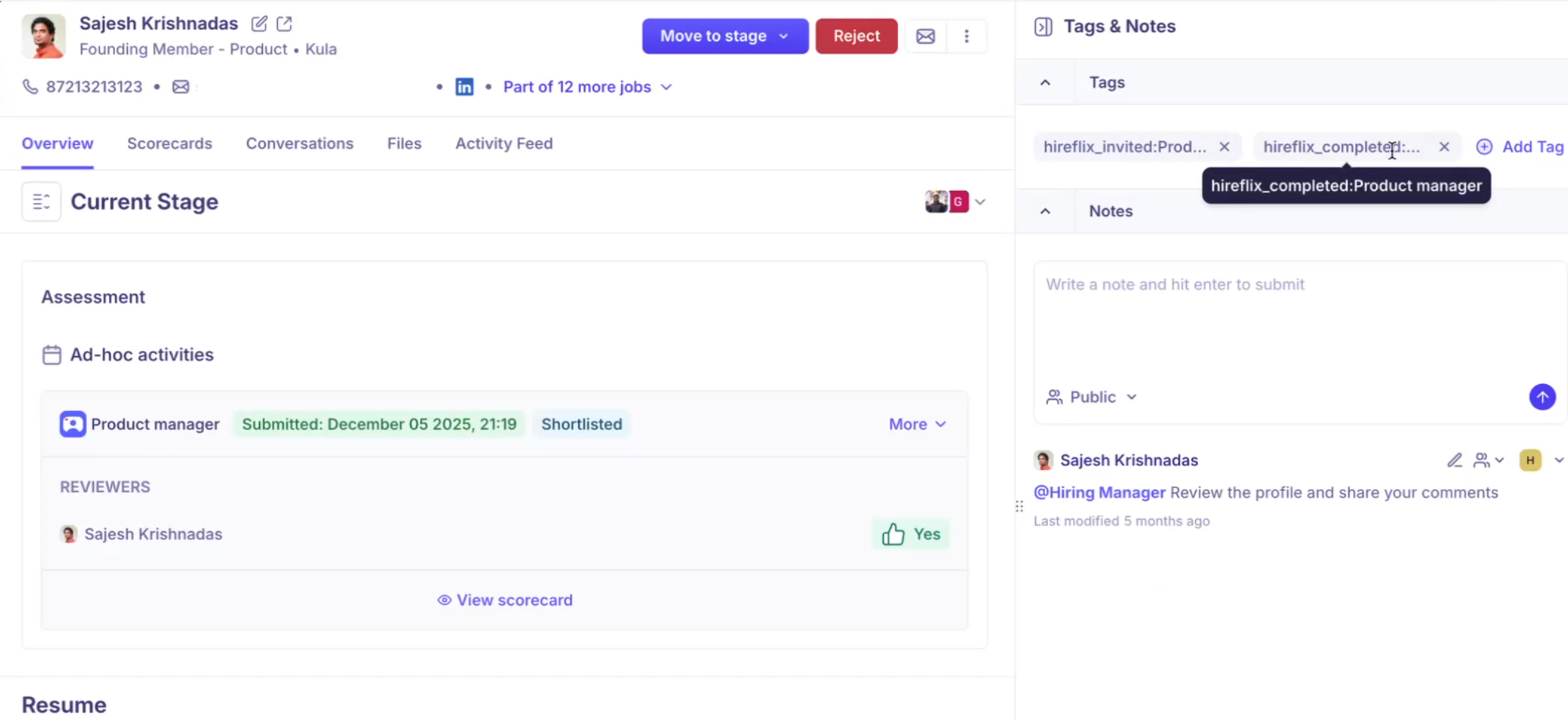
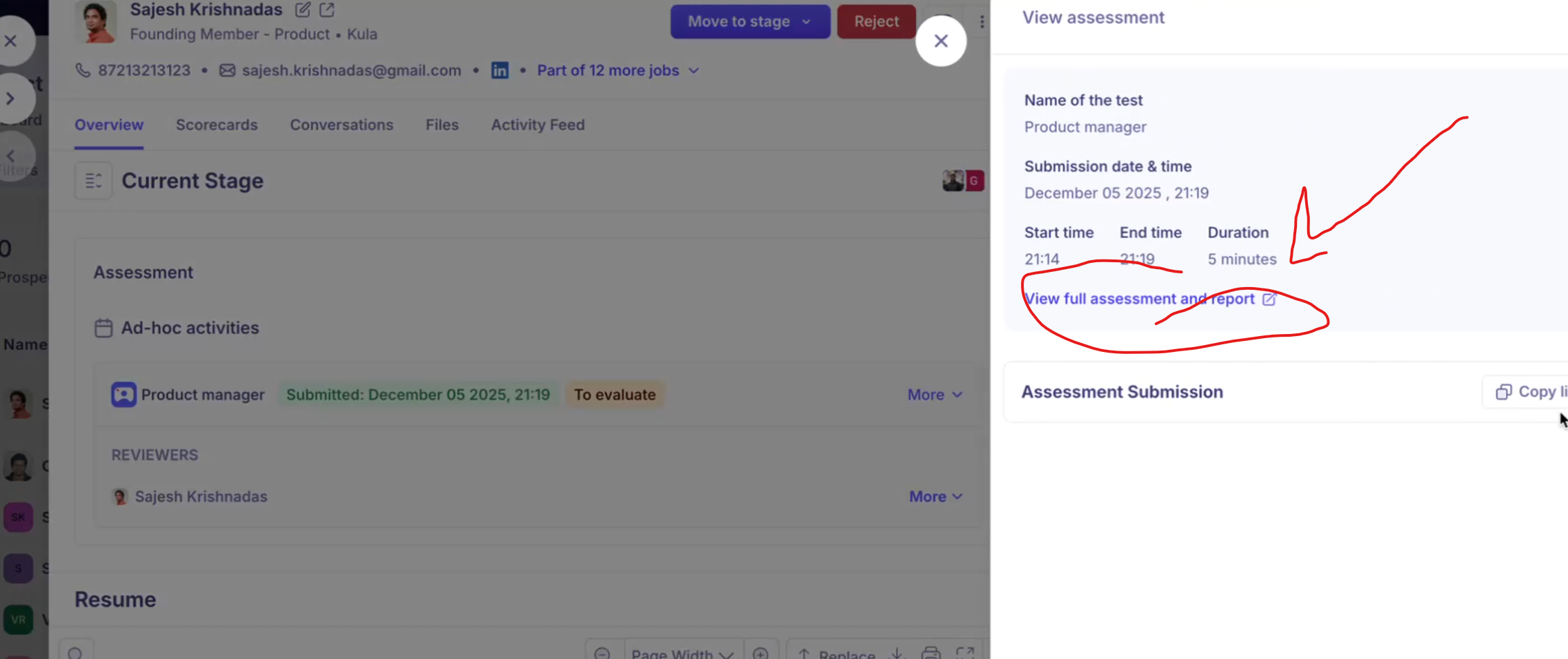
After the candidate submits their interview, the status in Kula changes to Submitted and the assessment details are available in the application. You will see two links:
- Full Assessment: opens the Hireflix recording so you can watch the candidate’s video and choose actions such as discard or shortlist.
- Scorecard: this is completed and stored in Kula, which remains the source of truth for evaluation and feedback.
If a candidate is shortlisted in Hireflix, the shortlisted tag will be automatically added to the candidate profile in Kula.
The selected reviewer will also be notified in Kula (via email, in-app notifications, and Slack if enabled) so they can open the interview, fill out the scorecard, and submit their feedback. Once submitted, the scorecard information is recorded and visible within Kula.
Bulk sending and skipping candidates who already completed the interview
When sending interviews in bulk, Kula automatically recognizes if any candidates have already taken the selected Hireflix assessment. Those candidates will be skipped, and you can proceed to send the assessment to the remaining candidates.
Tags will also be added when the interview is completed
That way you can filter by that paramenter.